
AI 객체 제거기
사진에서 원치 않는 객체, 사람, 텍스트, 잡티를 몇 초 만에 제거하세요
이미지 선택
드래그 앤 드롭 또는 클릭하여 업로드
JPG, PNG, WEBP • 최대 10MB
또는 예시 시도
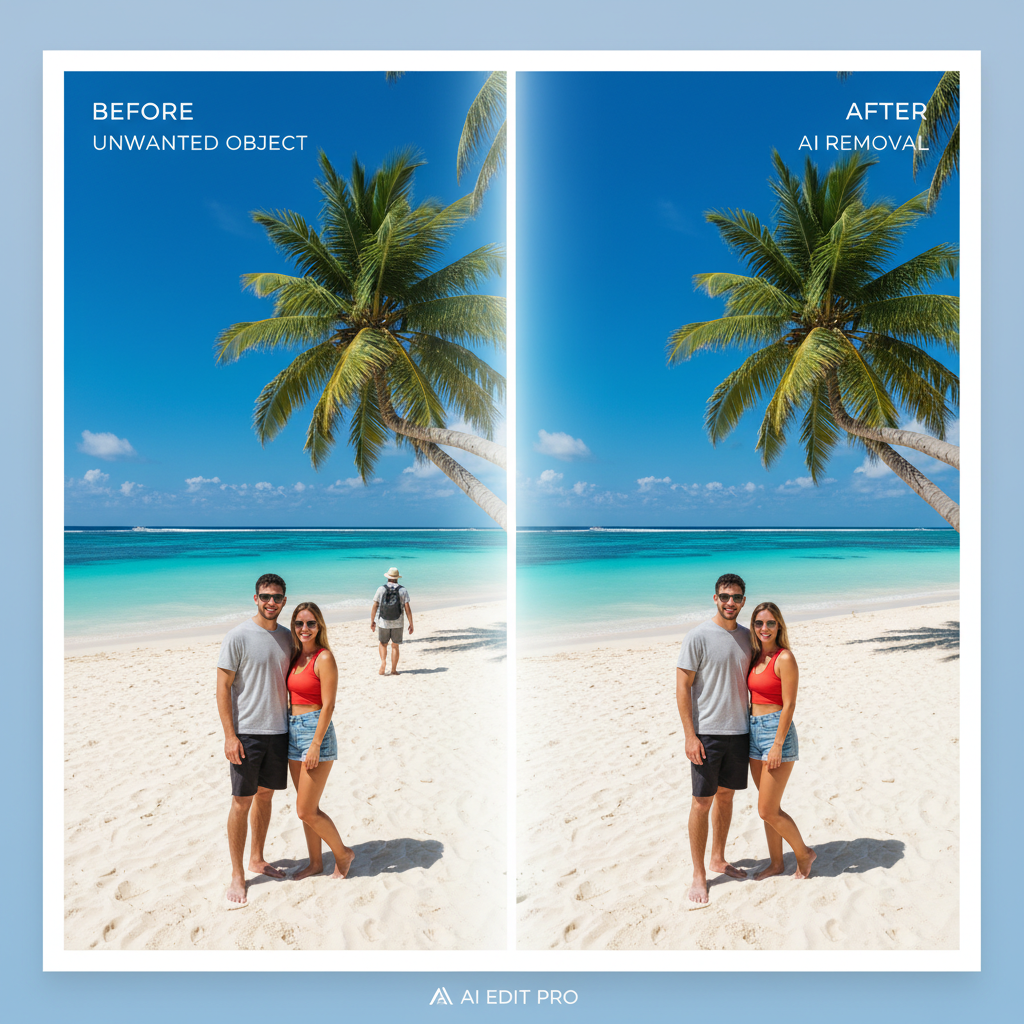
AI 정밀도로 몇 초 만에 객체 제거
포토샵의 지루한 수동 편집에 작별을 고하세요. 우리의 고급 LaMa AI 모델은 불과 몇 초 만에 사진에서 원치 않는 객체를 지능적으로 식별하고 제거합니다. 휴가 사진의 포토밤버, 제품 사진의 방해 요소, 원치 않는 텍스트와 워터마크 등—AI가 전문가 수준의 정밀도로 모든 것을 처리하며 흔적을 남기지 않습니다.
무료로 시도
자연스러운 배경 재구성
우리 AI의 특별한 점은 제거된 영역을 매끄럽게 채우는 능력입니다. 고급 인페인팅 기술을 사용하여 AI가 주변 픽셀을 분석하고 일치하는 텍스처, 패턴, 색상으로 배경을 지능적으로 재구성합니다. 결과가 너무 자연스러워서 아무도 그곳에 무언가 있었다는 것을 알 수 없습니다.
마법 보기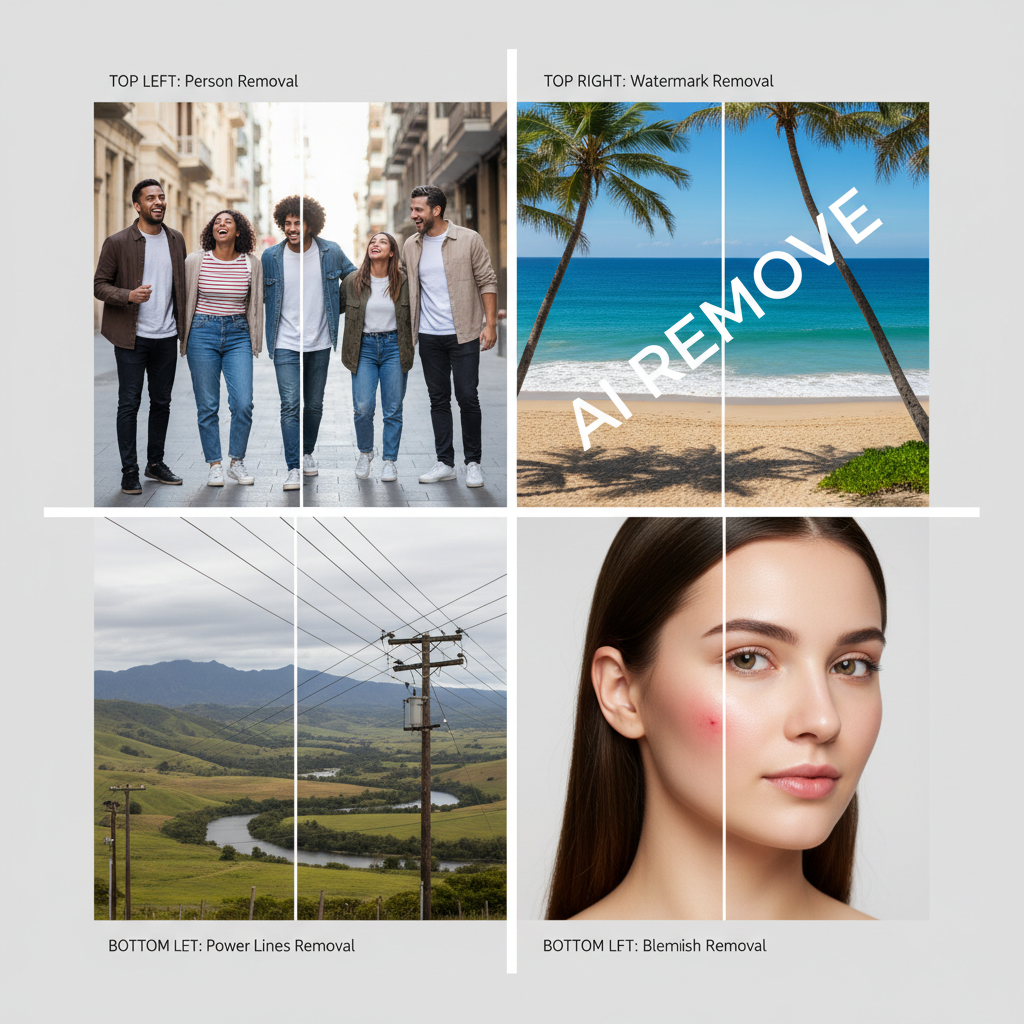
모든 사진에서 무엇이든 제거
우리의 객체 제거기는 거의 모든 제거 작업을 정밀하게 처리합니다. 제거하고 싶은 것 위에 브러시로 칠하면 사라지는 것을 지켜보세요.
- 여행 사진에서 사람과 포토밤버
- 이미지에서 워터마크와 로고
- 풍경에서 전선과 케이블
- 인물 사진에서 피부 결점과 불완전함
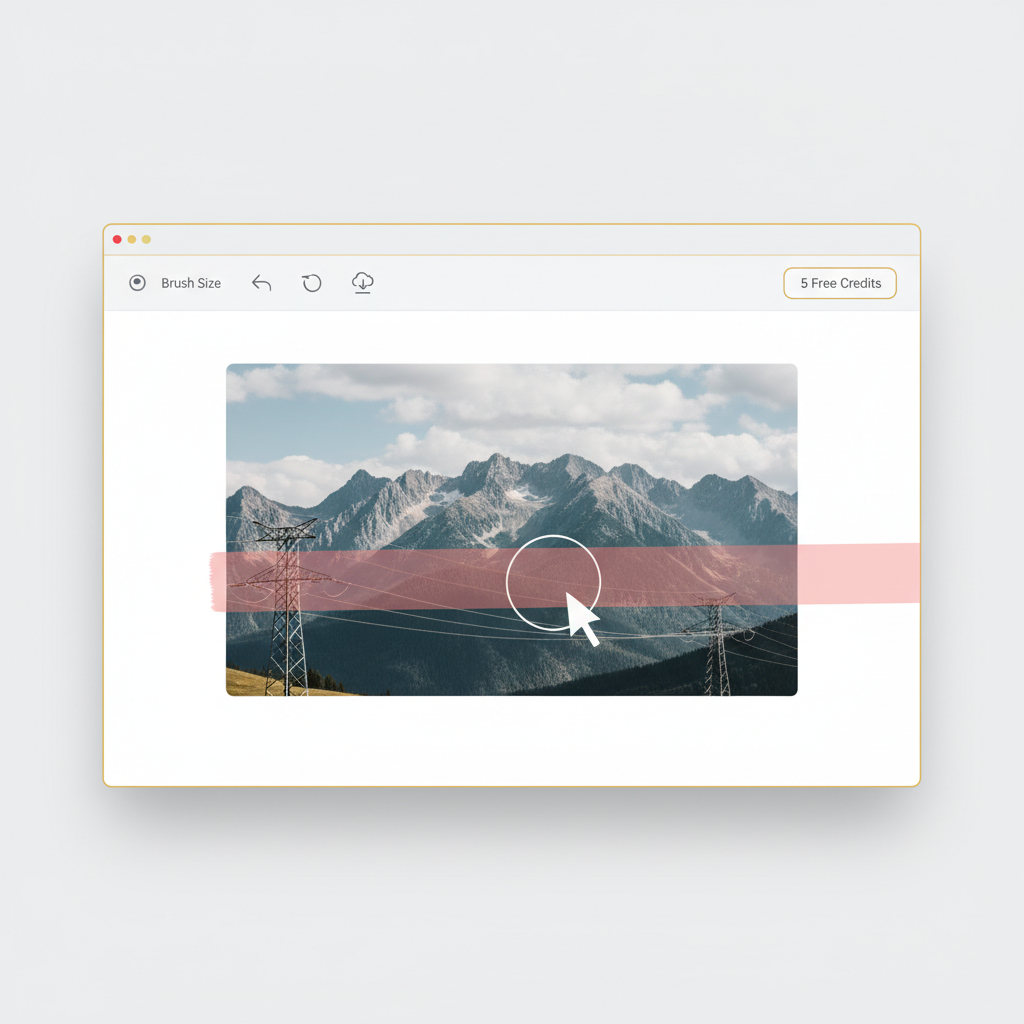
전문적인 결과, 완전 무료로 시작
비싼 소프트웨어 필요 없음. 복잡한 학습 곡선 없음. 이미지를 업로드하고, 제거하고 싶은 객체 위에 브러시로 칠하고, AI가 마법을 부리게 하세요. 무료로 가입하고 5크레딧을 받아 결과를 경험하세요. 객체 제거당 2크레딧만 사용됩니다. 결과가 마음에 들면 무제한 액세스로 업그레이드하세요.
무료로 시작3단계로 객체 제거하기
몇 초 만에 사진에서 원치 않는 객체를 제거하세요
이미지 업로드
사진을 업로드하세요. JPG, PNG, WEBP 최대 10MB 지원.
객체에 브러시
브러시 도구를 사용하여 제거하려는 객체를 표시하세요.
결과 다운로드
AI가 표시된 객체를 제거하고 영역을 자연스럽게 채웁니다. 깨끗한 사진을 다운로드하세요.
지원 형식
최대 파일 크기: 10MB
객체 제거 사용 사례
사진 정리부터 전문 편집까지, AI가 모든 것을 처리합니다
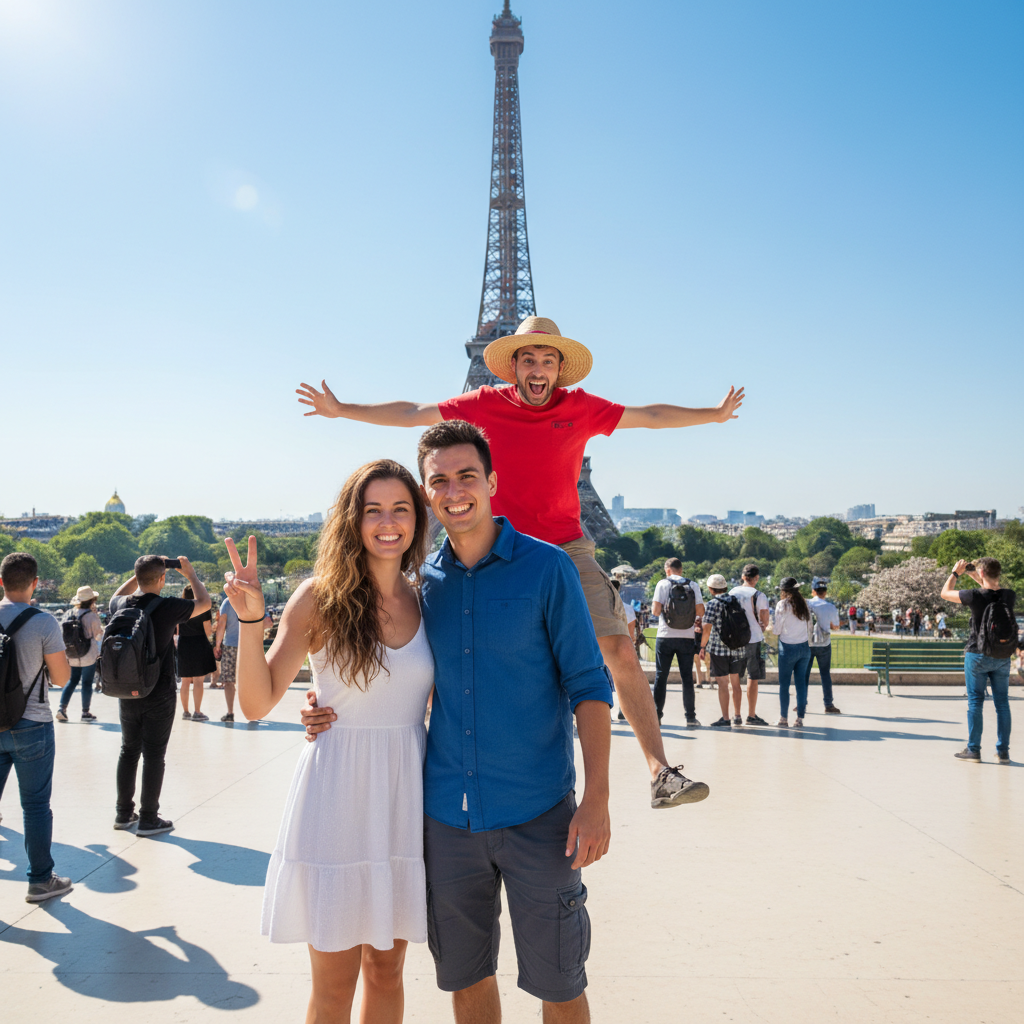
포토밤버 제거
휴가 사진과 단체 사진에서 원치 않는 사람을 쉽게 제거하세요.
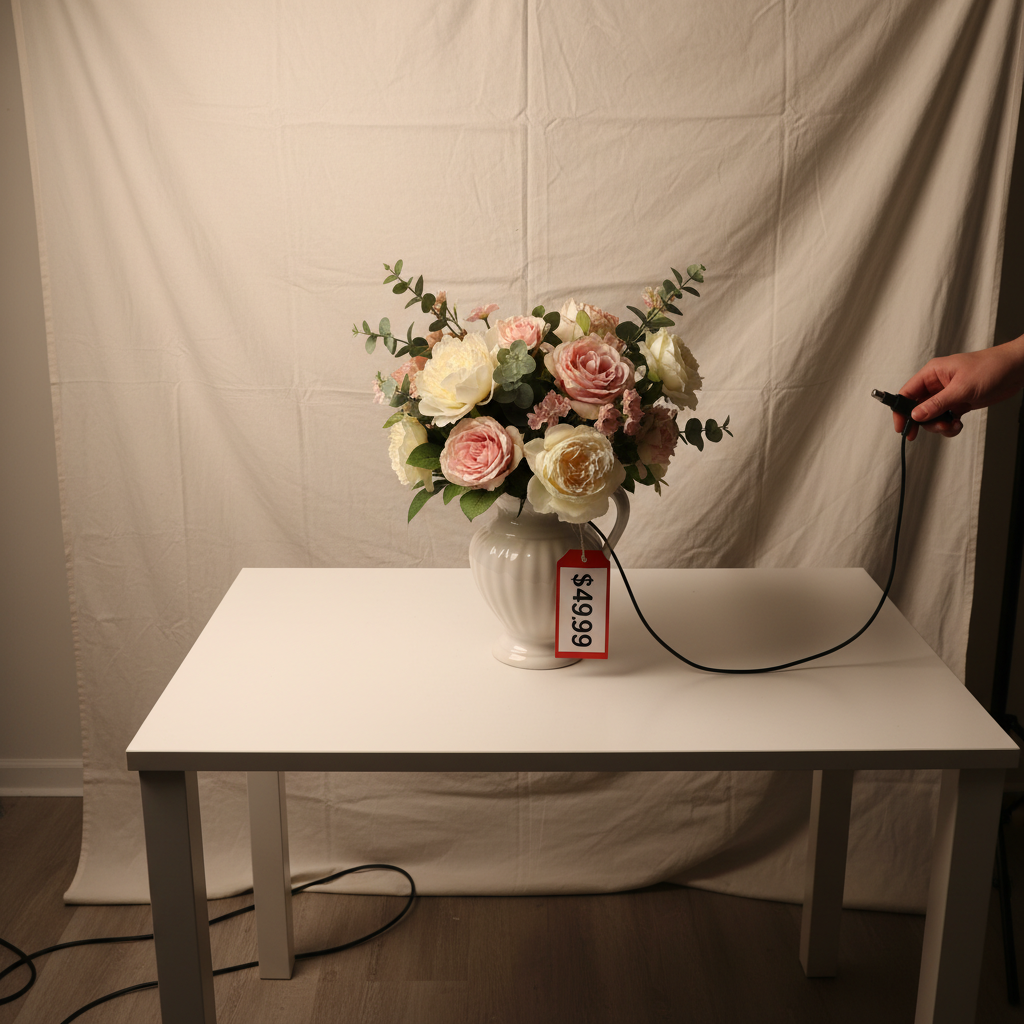
제품 사진 정리
이커머스 리스팅을 위해 제품 이미지에서 방해 요소를 제거하세요.
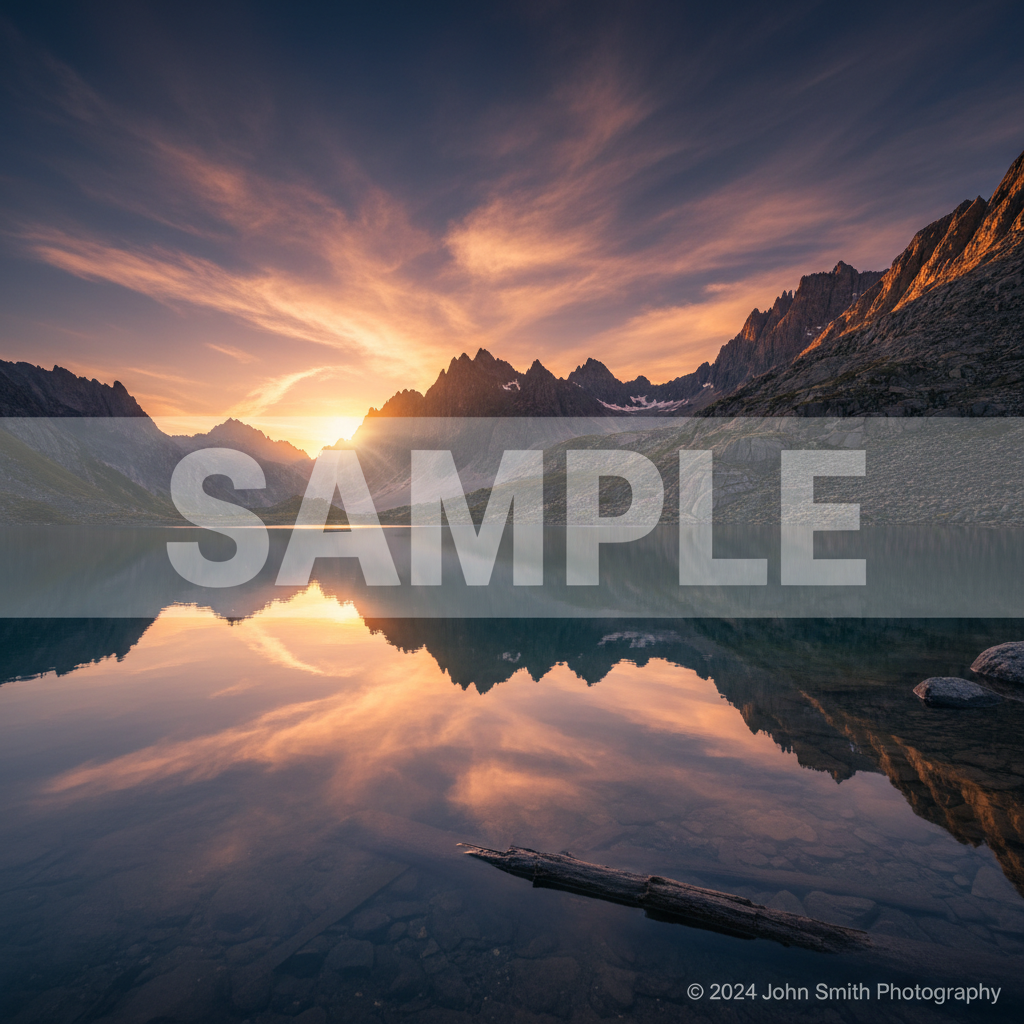
워터마크 제거
권리가 있는 이미지에서 워터마크와 로고를 제거하세요.
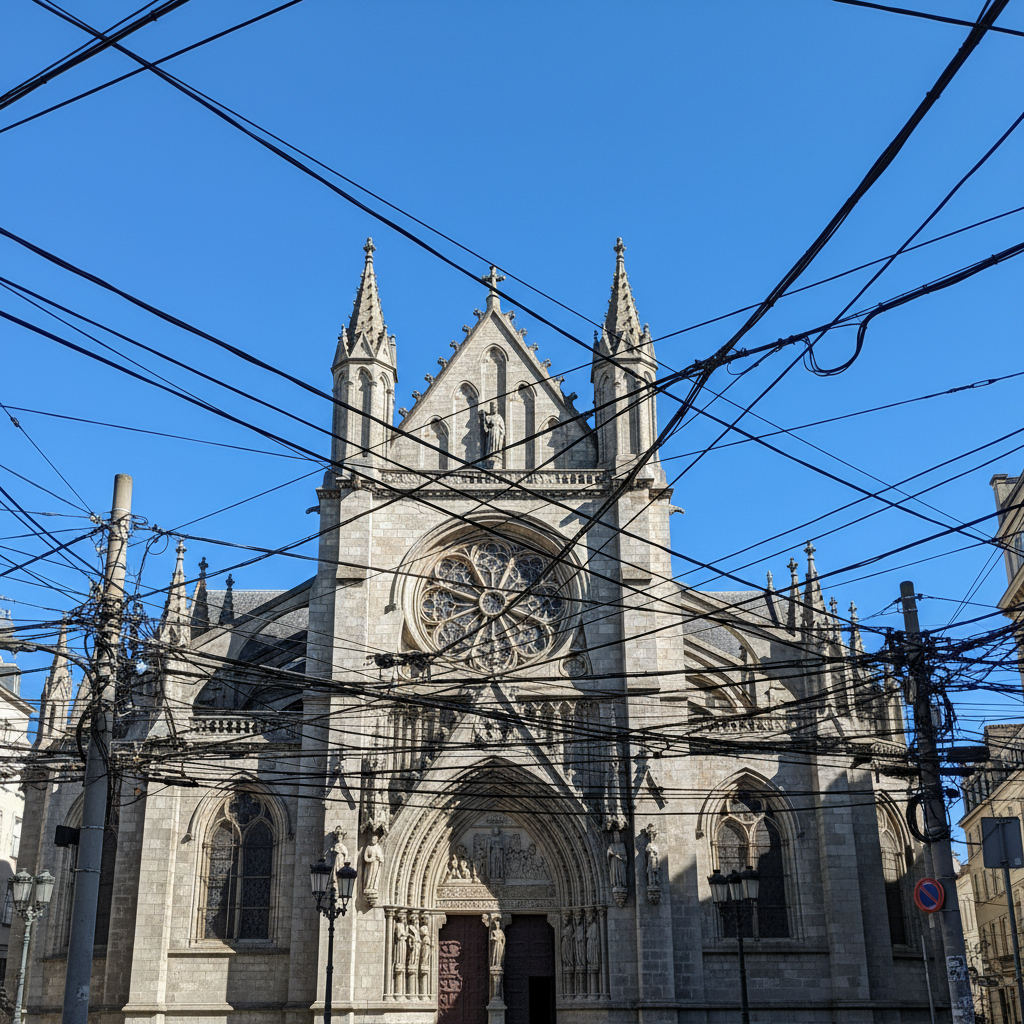
전선 제거
케이블과 전선을 제거하여 풍경 및 건축 사진을 정리하세요.
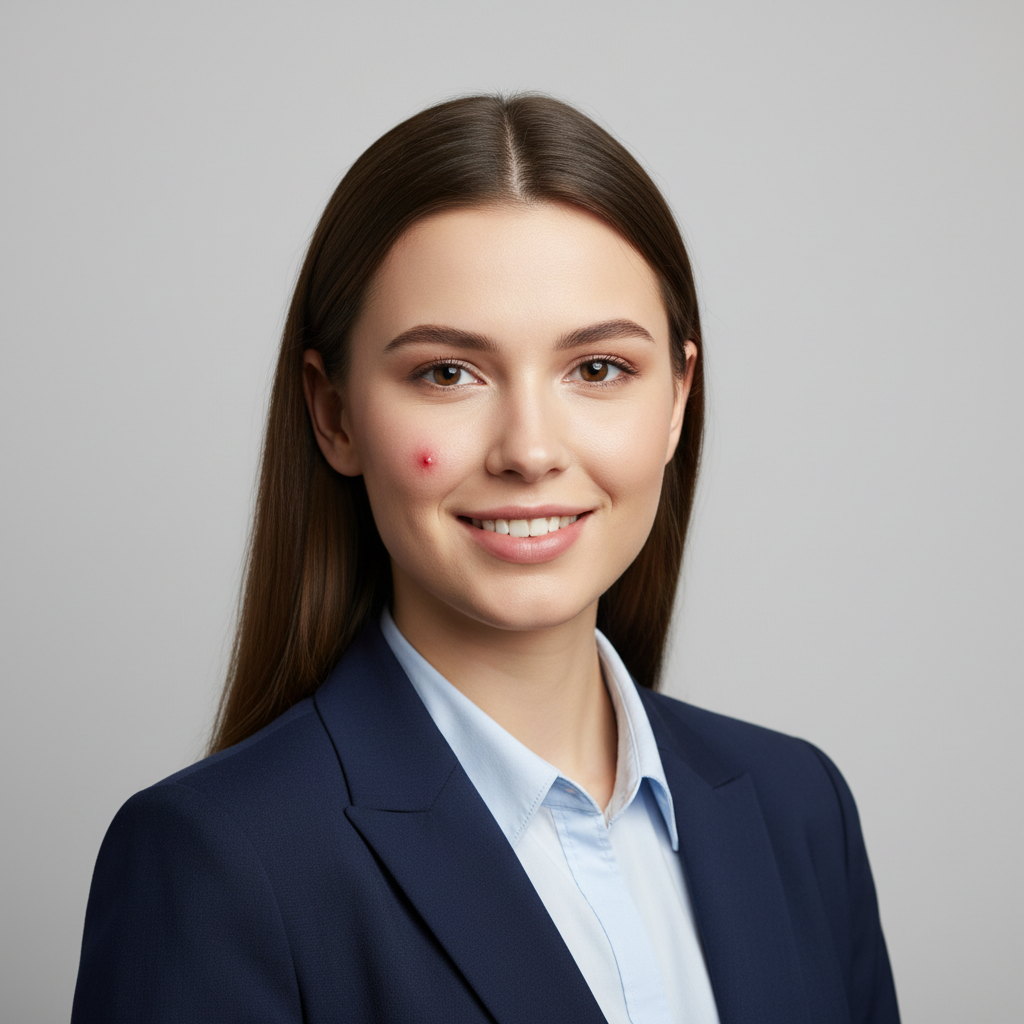
피부 잡티 제거
일시적인 잡티와 결점을 제거하여 인물 사진을 보정하세요.
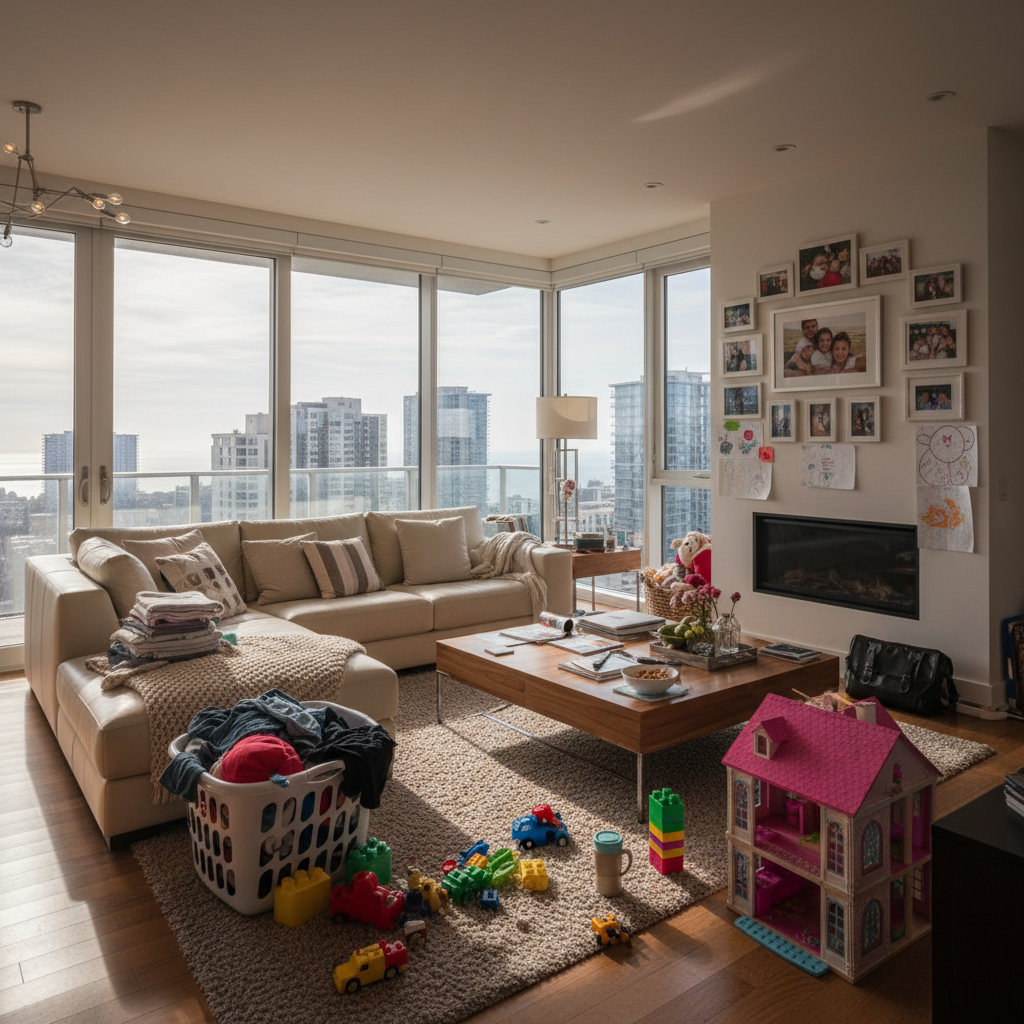
부동산 정리
리스팅을 위해 부동산 사진에서 개인 물품과 잡동사니를 제거하세요.
How Nano Banana 2 Compares to Other Object Removal Tools
See how our AI object remover stacks up against the most popular alternatives
Several AI-powered object removal tools exist, each with different approaches and limitations. Here is how Nano Banana 2 Object Remover compares to the most popular options available today.
Nano Banana 2 vs Cleanup.pictures
Cleanup.pictures offers a simple drag-to-remove interface and produces decent results on small objects. However, it limits free users to low-resolution output (720p) and requires a Pro subscription ($5/month) for full-resolution downloads. Nano Banana 2 delivers full-resolution results with a flexible credit system — no monthly commitment required. Both tools handle simple removals well, but Nano Banana 2 uses the advanced LaMa inpainting model for more natural background reconstruction on complex scenes.
Nano Banana 2 vs Adobe Generative Remove
Adobe's Generative Remove (in Photoshop and Firefly) uses generative AI to fill removed areas, producing impressive results for complex scenes. However, it requires an Adobe Creative Cloud subscription ($22.99/month for Photoshop) and works best within the full Photoshop environment. Nano Banana 2 provides comparable AI-powered object removal through a simple browser-based interface at a fraction of the cost, making professional results accessible to anyone without expensive software.
Nano Banana 2 vs Inpaint Online
Inpaint Online is one of the earliest object removal tools and offers basic inpainting capabilities for free. While it handles simple removals on uniform backgrounds, it struggles with complex textures and detailed areas. Nano Banana 2 uses next-generation AI inpainting that intelligently reconstructs backgrounds with matching textures, lighting, and perspective — producing results that look natural even in challenging scenarios like removing people from busy street scenes.
Nano Banana 2 Object Remover combines the power of advanced LaMa AI with a simple brush-based interface. No subscriptions, no software downloads — just upload, brush, and download your clean image at full resolution.
Tips & Best Practices for Object Removal
Get the cleanest results from our AI object remover with these expert tips
Match Brush Size to the Object
Use a larger brush for big objects and a smaller brush for fine details. Matching the brush size to the object helps the AI understand exactly what to remove and what to preserve, resulting in cleaner edges.
Zoom In for Precision
Zoom into the area you want to edit before brushing. This gives you much better control over exactly which pixels are marked for removal, especially important for objects near important elements you want to keep.
Cover the Entire Object
Make sure your brush strokes fully cover the entire object you want to remove, including its shadow. Partial coverage can leave visible remnants. It is better to slightly over-brush than to miss parts of the object.
Start with Small Objects
If you are new to object removal, start with smaller objects like blemishes, power lines, or small distracting elements. This helps you get a feel for how the AI works before tackling larger, more complex removals.
Try Multiple Passes for Complex Removals
For large or complex objects, consider removing them in stages rather than all at once. Remove part of the object, download the result, then re-upload and remove the rest. This often produces more natural results.
Clean Surrounding Area Matters
The AI uses surrounding pixels to fill the removed area. If the area around the object is clean and detailed, the reconstruction will be more convincing. Avoid removing objects that take up most of the image.
Use High-Resolution Source Images
Higher resolution images give the AI more pixel data to work with, resulting in better background reconstruction. The AI can pick up more texture and pattern detail from high-res sources to fill the gap naturally.
Review at Full Size Before Downloading
Always zoom in to inspect the removal area at full resolution before downloading. Check for any artifacts, color mismatches, or unnatural patterns. A quick review ensures professional-quality results every time.
Clean up your product photos, then place them in professional scenes — no photographer needed.
Explore More AI Tools
Discover our complete suite of AI photo editing tools
객체 제거기 FAQ
사진에서 객체 제거에 대해 알아야 할 모든 것
더 궁금한 점이 있으신가요? 문의하기
Try our free AI image generator for text-to-image, editing, and more.